Using CoreDiag
CoreDiag lives on every repair order page in Tekmetric. This page walks through what you'll see and how to use it.
Where to find the button
Open any repair order in Tekmetric (Chrome or Edge). Look for the CoreDiag button in the bottom-right corner of the screen, with an engine icon.
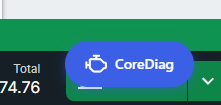
If the button is in the way, hover near it and click the small x to hide it. A small gray circle will remain. Click the circle to bring the button back.
Running a diagnosis
- Open a repair order in Tekmetric.
- Click the CoreDiag button.
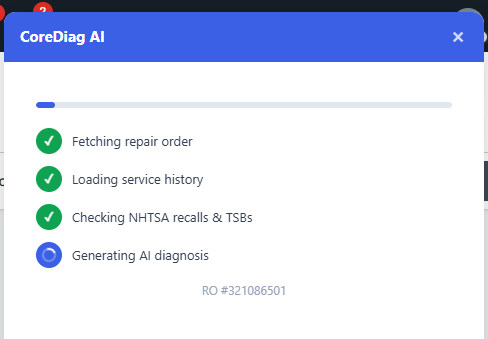
- A panel opens on the right side showing progress:
- Fetching the repair order
- Loading service history
- Checking NHTSA recalls and TSBs
- Generating the AI diagnosis
- Results appear with ranked suggestions.
Reading the results
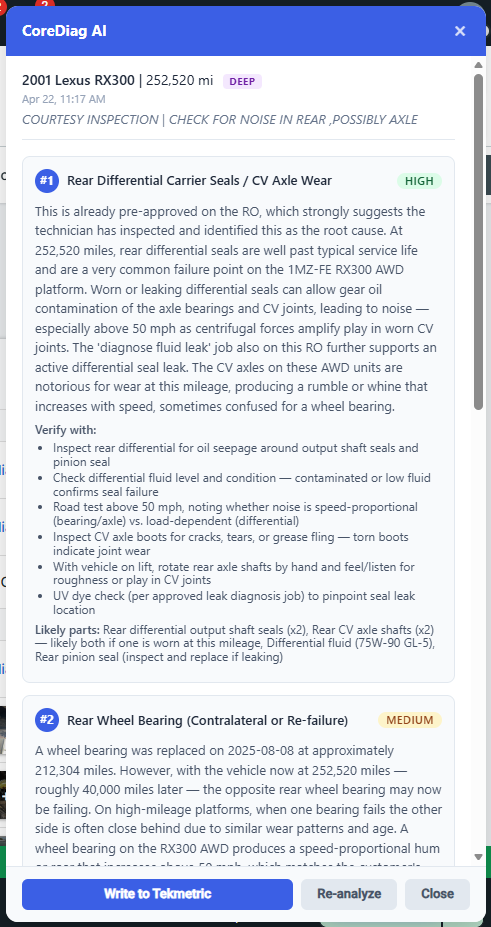
Each suggestion includes:
- Rank number (#1, #2, #3) ordered by likelihood
- Diagnosis name: what CoreDiag thinks is wrong
- Confidence level: High, Medium, or Low
- Reasoning: why, based on vehicle, symptoms, and data
- Verify with: specific tests to confirm or rule out the diagnosis
- Likely parts: what you'd probably need if this diagnosis is correct
Open recalls and NHTSA complaints for the vehicle are flagged at the bottom of the results.
Writing results to Tekmetric
After reviewing the suggestions, click Write to Tekmetric at the bottom of the results panel.
What happens when you click it.
- CoreDiag adds a dedicated job to the RO (each shop names it something like "CoreDiag AI Diagnostic").
- The full set of ranked suggestions is saved to that job's internal notes.
- The button turns green and confirms the write.
Things worth knowing:
- The notes live in the job's internal notes, not on the customer-facing estimate. Customers never see them.
- The job appears on the RO as a $0 line item. No labor, no parts, no cost.
- Existing jobs on the RO are untouched. CoreDiag only adds its own job alongside them.
- If you Re-analyze the RO and write again, CoreDiag updates the same job instead of creating a duplicate.
- If the RO has already been closed or posted, Tekmetric will reject the write. Run CoreDiag before the RO is finalized.
Cached results
CoreDiag remembers results for each RO during your browser session. If you:
- Close the panel and reopen it: results appear instantly.
- Navigate to a different RO and come back: results are still there.
- Refresh the Tekmetric page: cache clears, you'd run a new analysis.
To force a fresh diagnosis, click Re-analyze at the bottom of the results panel.
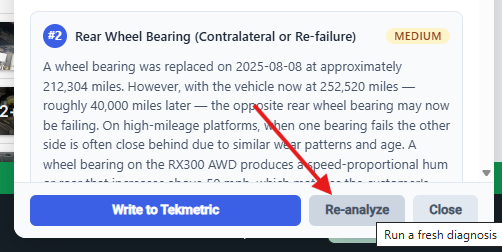
Fast vs. Deep mode
CoreDiag has two diagnosis modes:
- Deep mode (default): more thorough analysis, 20 to 30 seconds. Best for tricky diagnoses.
- Fast mode: quicker results in 5 to 10 seconds. Good for straightforward issues.
The current mode is shown as a badge (purple for Deep, blue for Fast) next to the vehicle name in the results. You can switch between modes in the extension settings (next section).
Extension settings
To open settings, right-click the CoreDiag icon in your Chrome or Edge toolbar and choose Options, or click the icon and then Settings at the bottom of the popup.
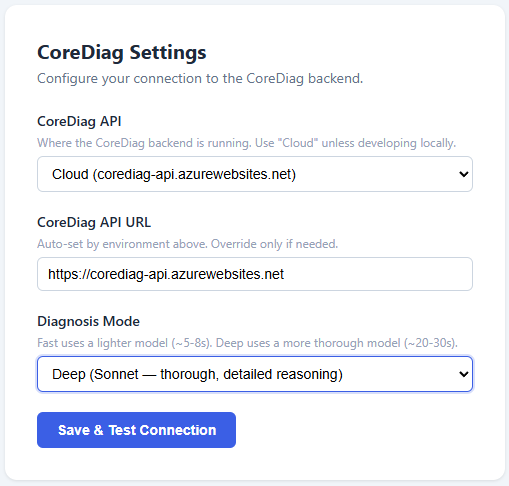
CoreDiag API: leave this set to Cloud. "Local Dev" is only used by IT when testing new versions of the backend.
Diagnosis Mode: pick Fast or Deep. Deep is the default and is the right choice for most ROs.
After changing a setting, click Save & Test Connection to confirm the backend is reachable.
Looking up an RO from the toolbar
If you want to run a diagnosis without opening the RO in Tekmetric, click the CoreDiag icon in your browser toolbar. Enter the RO ID and click Get AI Diagnosis.
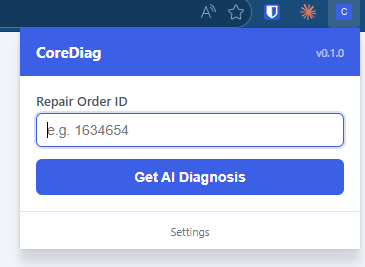
Mostly useful for managers reviewing an RO remotely, or when you already know the RO number and don't want to click through Tekmetric to find it.
When to use CoreDiag
Run CoreDiag on every diagnostic RO. A few minutes of AI context before the tech even touches the vehicle is usually worth it. It's especially valuable when:
- The customer concern is vague or mentions multiple symptoms.
- The vehicle is unfamiliar to you.
- The issue might be tied to a known recall or TSB.
- You want a second set of "eyes" before quoting.
CoreDiag will not replace your tech's diagnostic work. It accelerates the conversation.